Basic Functional Global Variable Example
 Example_Scrubber_Samah
01-30-2017
02:08 AM
Example_Scrubber_Samah
01-30-2017
02:08 AM
- Subscribe to RSS Feed
- Mark as New
- Mark as Read
- Bookmark
- Subscribe
- Printer Friendly Page
- Report to a Moderator
Products and Environment
This section reflects the products and operating system used to create the example.To download NI software, including the products shown below, visit ni.com/downloads.
- LabVIEW
Software
Code and Documents
Attachment
Overview
This VI demonstrates a simple usage of Functional Global Variables in incrementing and displaying a number.
Description
Functional global variables are VIs that use loops with uninitialized shift registers to hold global data. A functional global variable usually has an action input parameter that specifies which task the VI performs.
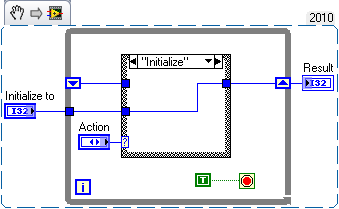
The VI uses an uninitialized shift register in a While Loop to hold the result of the operation. The following illustration shows a functional global variable that implements a simple count global variable. The actions in this example are initialize, read, increment, and decrement.
Every time you call the VI (Call Functional Global.vi), the block diagram in the loop runs exactly once. Depending on the action parameter, the case inside the loop initializes, does not change, incrementally increases, or incrementally decreases the value of the shift register. Although you can use functional global variables to implement simple global variables, they are especially useful when implementing more complex data structures, such as a stack or a queue buffer. You also can use functional global variables to protect access to global resources, such as files, instruments, and data acquisition devices, that you cannot represent with a global variable.
Requirements
LabVIEW 2012 (or compatible)
Steps to Implement or Execute Code
To make this example work with your code, or as a standalone application:
- Download the attached folder
- Open the "Functional Global Variable_LV2012_NI Verified.lvproj" Project
- Open the Call Functional Global Variable.vi
- Run the VI
- Initialize the value of the variable in the "Initialize to" control
- Click on Initialize to store the value in the buffer
- Click on Increment to Update the value in the buffer
- Click on Get to display the value stored in the buffer
Additional Information or References
FVG used a SubVI
Block Diagram of FGV
**This document has been updated to meet the current required format for the NI Code Exchange.**
LabVIEW Community Manager
National Instruments
Example code from the Example Code Exchange in the NI Community is licensed with the MIT license.


- Mark as Read
- Mark as New
- Bookmark
- Permalink
- Report to a Moderator
RE; The AE shown above.
All controls and indicators should be on the root of the diagram and not inside the structures for best performance. Please see the "Clear as Mud" thread to read where Greg McKaskle explained how LV can optimize performance when it can determine if data is un-modified in a sub-VI.
Ben


- Mark as Read
- Mark as New
- Bookmark
- Permalink
- Report to a Moderator
How would Ben suggest modifying the example to implement this performance-enhancing stricture? I have read the referenced discussion and I don't see how. It seems the essential feature of the Functional Global Variable is the use of an uninitialized shift register. I don't see any way to get the initial value into this example from outside the loop without initializing the shift register.
It is also not clear to me what makes this "global". My understanding is that there must be a convention that this variable will not be modified elsewhere, which is implied from the, presumably, all-inclusive list of Action cases.
Having downloaded the example, I see that it no longer looks like the image shown above. It has been modified to introduce the initial value from outside the loop.
- Mark as Read
- Mark as New
- Bookmark
- Permalink
- Report to a Moderator
http://forums.ni.com/t5/LabVIEW/Community-Nugget-4-08-2007-Action-Engines/m-p/503801W
Why did this document jsut change?
See the link above for my Nugget on Action Engines.
Ben


- Mark as Read
- Mark as New
- Bookmark
- Permalink
- Report to a Moderator
Pros and cons if instead of while loop i used for loop with n connected to 1
Sumit Memane
CLAD, CTD


- Mark as Read
- Mark as New
- Bookmark
- Permalink
- Report to a Moderator
sumit04,
They are pretty much equivalent. Most people will recognize the While loop setup a lot faster than the FOR loop setup. Personally, I prefer the "No Loop" option by using a Feedback Node.
There are only two ways to tell somebody thanks: Kudos and Marked Solutions
Unofficial Forum Rules and Guidelines
"Not that we are sufficient in ourselves to claim anything as coming from us, but our sufficiency is from God" - 2 Corinthians 3:5


- Mark as Read
- Mark as New
- Bookmark
- Permalink
- Report to a Moderator
@crossrulz
Would you be willing to provide an example of a "no loop" FGV? A picture is fine, I'm just curious about this approach. Thanks!
- Mark as Read
- Mark as New
- Bookmark
- Permalink
- Report to a Moderator
@JRiggles,
I have an example at this article: A Look at Race Conditions
There are only two ways to tell somebody thanks: Kudos and Marked Solutions
Unofficial Forum Rules and Guidelines
"Not that we are sufficient in ourselves to claim anything as coming from us, but our sufficiency is from God" - 2 Corinthians 3:5
- Mark as Read
- Mark as New
- Bookmark
- Permalink
- Report to a Moderator
@crossrulz
Thanks a lot, I'll check it out

