From Excel to LabVIEW with style
 GriffinRU
 GriffinRU
01-27-2017
02:32 AM
GriffinRU
01-27-2017
02:32 AM
- Subscribe to RSS Feed
- Mark as New
- Mark as Read
- Bookmark
- Subscribe
- Printer Friendly Page
- Report to a Moderator
Code and Documents
Attachment
Overview
This VI allows the user to bring in the values and properties of an Excel sheet into LabVIEW.
Description
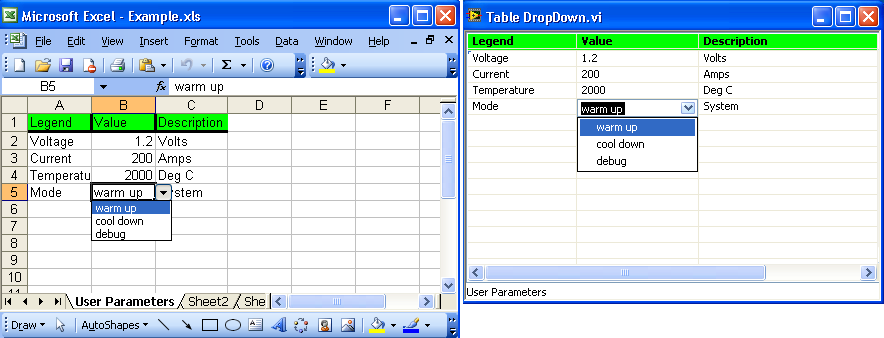
Using this VI, the user is able to import data and Excel cell properties into LabVIEW. One simple example of this is passing Excel's cell properties directly into a LabVIEW table control and now the user can have access to all of the data values within that specific cell. If you no longer have LabVIEW 2009 installed on your computer with the examples installed, you may run into missing VIs when uploading the Table DropDown.vi. You can replace these VIs with the same VIs of an updated version of LabVIEW for example LabVIEW 2010. In this basic example VI, the VI loads data from Excel's cells A1:C5, obtains the cell's background color from A1 and the validation data from the 5th row only. In LabVIEW, spreadsheet name is passed as a table caption, data from A1:C1 is passed to a LabVIEW table as headers, A1s background color is passed as a header's background color, and validation data is passed to LabVIEW into a Combo Box.
Update for Table DropDown ver2.vi:
- Obtains last record from Excel (i.e. reading not fixed 5 rows but as many as spreadsheet holds).
- Read cells comments and pass them as tip strips.
- Gets all validation data from spreadsheet and then applies it in LabVIEW to appropriate table cells only (current example limited to column B).
Steps to Implement or Execute Code
- Download Table DropDown.vi and Example.xls into same directory
- Run VI
- Modify the Excel sheet
- Run VI again to see changes updated
Requirements
Software
LabVIEW 8.5 and later
Hardware
N/A
Additional Images
Excel Sheet with Data and Also LabVIEW Front Panel of Imported Data
Example code from the Example Code Exchange in the NI Community is licensed with the MIT license.


- Mark as Read
- Mark as New
- Bookmark
- Permalink
- Report to a Moderator
Some subVIs are required: "Open Excel and make visible", "Open specific workbook", "Open specific worksheet". I have the Report generation toolkit, but there are no such files


- Mark as Read
- Mark as New
- Bookmark
- Permalink
- Report to a Moderator
Yes I have the same problem as Snamprogetti above. I have the toolkit and LV2010.
Really like the sound of this vi though. Like the determination of end of excel data rather than having a pre-determined amount of rows.
Cheers.


- Mark as Read
- Mark as New
- Bookmark
- Permalink
- Report to a Moderator
Please note subVI path; it points to LabView 2009. Change the path to LabView 2010 (or your current version) and it will run.

- Mark as Read
- Mark as New
- Bookmark
- Permalink
- Report to a Moderator
Missing vis can be found in examples directory inside ExcelExamples.llb shipped with LabVIEW (Full and professional for sure, not sure about basic).
(Full path: \\Program\Files\National Instruments\LabVIEW2009\examples\comm\ExcelExamples.llb)
If not found, let me know, I will add/show how to open Excel, Workbook and worksheet.
Thank you, for comments
Artur
P.S. Upon request (or later), I can provide code for other LabVIEW versions

- Mark as Read
- Mark as New
- Bookmark
- Permalink
- Report to a Moderator
Thanks,
Its working well
- Mark as Read
- Mark as New
- Bookmark
- Permalink
- Report to a Moderator
You welcome, I am glad that it was helpful example.
Artur


- Mark as Read
- Mark as New
- Bookmark
- Permalink
- Report to a Moderator
Could someone please post LV 8.5 versions of these VIs?
ORISE Research Fellow at US EPA
- Mark as Read
- Mark as New
- Bookmark
- Permalink
- Report to a Moderator
No problem,
Let me know if "save for previous" was succesfull.
-Artur
- Mark as Read
- Mark as New
- Bookmark
- Permalink
- Report to a Moderator
Artur, I am requesting for LV 8.5 version since I cannot open the 2009 version on my PC
ORISE Research Fellow at US EPA
- Mark as Read
- Mark as New
- Bookmark
- Permalink
- Report to a Moderator
-Artur

- Mark as Read
- Mark as New
- Bookmark
- Permalink
- Report to a Moderator
I just downloaded the version 2 example and got the following error message (LabVIEW 2010):
Error -2147352567 occurred at Property Node (arg 1) in Table DropDown ver.2.vi
This error code is undefined. Undefined errors might occur for a number of reasons. For example, no one has provided a description for the code, or you might have wired a number that is not an error code to the error code input.
Additionally, undefined error codes might occur because the error relates to a third-party object, such as the operating system or ActiveX. For these third-party errors, you might be able to obtain a description of the error by searching the Web for the error code (-2147352567) or for its hexadecimal representation (0x80020009).
- Mark as Read
- Mark as New
- Bookmark
- Permalink
- Report to a Moderator
Thank you for feedback,
During initialization return from "Formula1" creates error if field is blank, this error can be ignored.
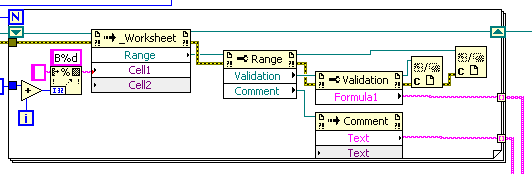
I will modify code later.
-Artur


- Mark as Read
- Mark as New
- Bookmark
- Permalink
- Report to a Moderator
Awaiting code code modification...


- Mark as Read
- Mark as New
- Bookmark
- Permalink
- Report to a Moderator

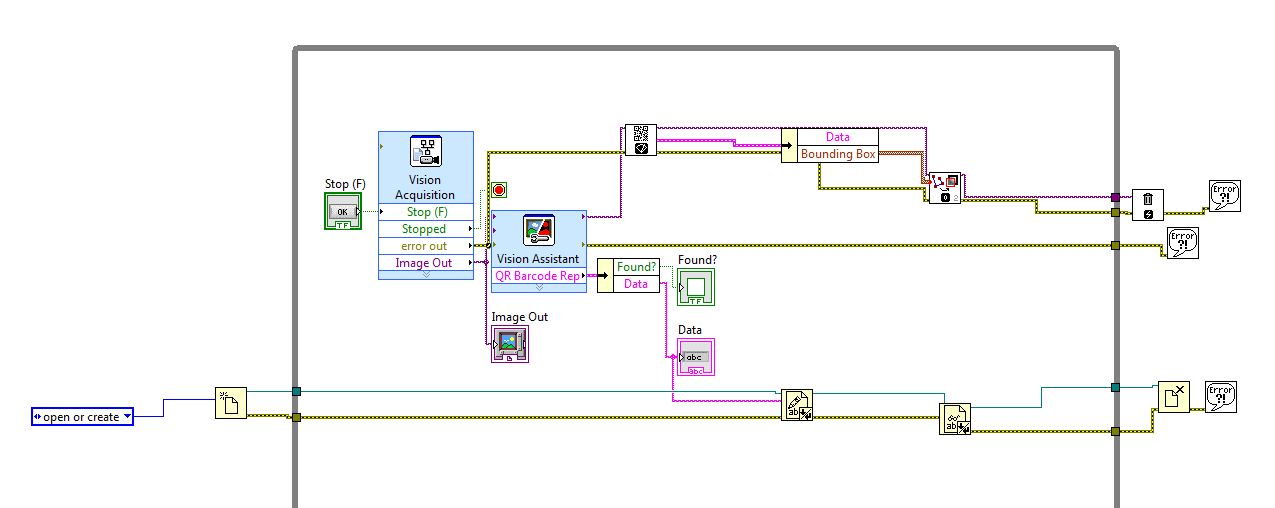 Hello people
I saw your comment. But my problem is to export information from labview to excel. I did attach my work down but when i am yielding the output. it is repeatedly giving the same output. I did attached this also. Actually the vision acquisition detect the QR code and the decoded in the code is stored in the excel. The second problem i am getting is each time i have to open a new file.xls. i can't continue to use the same file. Can some1 helped me please.
- Mark as Read
- Mark as New
- Bookmark
- Permalink
- Report to a Moderator
Hello Zahkay,
There are examples shipped with LabVIEW, open "Find Examples..." from help menu -> switch tab from "Browse" to "Search" and type "Excel" -> I think "Write Table To XL.vi" would be great start.
And, you don't need to open new Excel file, you can write to existing -> just need to write a program which would add NEW data into Excel's rows or columns in proper order, instead of just writing data into text file with .xls extension. (I am guessing in-between from partial code you attached).
-Artur
- Mark as Read
- Mark as New
- Bookmark
- Permalink
- Report to a Moderator
thank u sir
yup i saw the VI
will take it into more consideration
thanks

- Mark as Read
- Mark as New
- Bookmark
- Permalink
- Report to a Moderator
Is it possible to read multiple columns. For example : i want to read data of columns 3, 28 and 58 from my excel sheet.
How can i do this ?
- Mark as Read
- Mark as New
- Bookmark
- Permalink
- Report to a Moderator
Hi,
You should be able to do that with "Range" function. Check https://msdn.microsoft.com/en-us/library/office/ff838238.aspx
-Artur
