User Tracking with LabVIEW and Kinect based on the OpenNI Interface
- Subscribe to RSS Feed
- Mark as New
- Mark as Read
- Bookmark
- Subscribe
- Printer Friendly Page
- Report to a Moderator
Code and Documents
Attachment
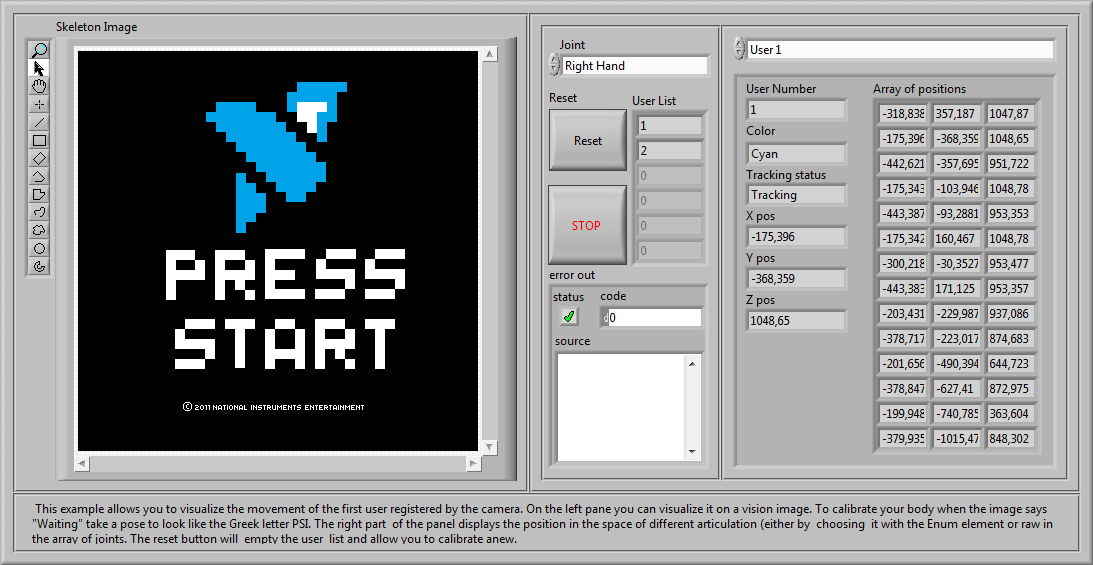
I found a way to get the user recognition to work in LabVIEW using Microsoft Kinect. It is based on the OpenNI interface with PrimeSense middleware components and drivers. A short video presenting some of the features is available:
To get it working, you will need to install the previously named components. For an optimal use of the functions, it is better to have NI Vision in addition to LabVIEW 2010 SP1 (or higher), although all data can be read and used in numeric form, allowing its use by people not owing an NI Vision license.
I - Installation
You will need to download the following files in order for it to function:
[1] The Kinect Drivers compatible with PrimeSense: https://github.com/avin2/SensorKinect
[2] OpenNI latest installation file: http://www.openni.org/downloadfiles/opennimodules/openni-binaries/20-latest-unstable
[3] PrimeSense NITE Middleware installation file: http://www.openni.org/downloadfiles/opennimodules/openni-compliant-middleware-binaries/33-latest-uns...
[4] PrimeSense Sensor installation file:
/!\ Note that OpenNI drivers can theoretically not be installed while the official Kinect SDK drivers are. You can try to get both working together looking at this discussion in the OpenNI discussion Group, but it seems that the method does not always work. If not, you will need to remove the Kinect SDK Drivers before installing the OpenNI ones.
* Assuming you have the Kinect device plugged in and that you have no drivers installed on your computer, unzip the file downloaded in [1] and then change to the device manager. You should only see the Kinect motor as unknown device. You can manually look for its drivers in <path to the [1] unzipped folder>\Platform\Win32\Driver\. I could only test on x86 systems, thus I do not know if it works on x64 systems as well. Repeat the process for Kinect Camera and Kinect Audio once they appear. At the end it should look like the following: 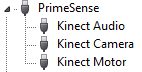 * Now install OpenNI (file downloaded in [2]). This is a simple Microsoft installer.
* Repeat the process with the PrimeSense files downloaded in [3] and [4].
* Once those steps are completed, install the PrimeSense Sensor interface for Kinect. It can be found under <path to the [1] unzipped folder>\Bin\. This again, is a simple msi file.
* To verify if the installation has been successfully completed, try to run some of the OpenNI examples. The default path to them is C:\Program Files\OpenNI\Samples\Bin\Release\. You can run NiSimpleViewer.exe which displays the depth information of the depth sensor or NiUserTracker.exe which allows testing the user tracking. The calibration is done taking a pose looking like the Greek letter PSI as shown in the picture below.

* Finally, try the UserTracker.net.exe from the same folder to verify that the .NET assemblies have been correctly installed, as they will be used in LabVIEW.
If those examples do not work, it can either mean there is a conflict with another driver, that the installation has not been successful or that you have a graphic card that is too old/you have an integrated graphic chip (it does not work with all of them).
II – Tracking Users in LabVIEW
Now that the device seems to be working with OpenNI, you can try to make it work with LabVIEW. The project I did can be downloaded at the bottom of this document. Extract it somewhere and open Kinect Wrapper.lvproj.
 The important parts of the project are the Examples and Functions folders. In the Example folder you can find ready-to-use VIs that are programmed with the ones from the Functions folder.
*  TestDepth.vi: This VI allows easy testing of the depth sensor of the camera. It returns the middle point of the depth image. You can just move away or wave in front of it to see it move. Note that the sensor can do distance measurements starting from 50cm only.
*  TestMap.vi: This VI gets the depth map and displays it in a 3D graph. It runs slowly because of the 3D graph which needs time to display its 640*480 points. If you own NI Vision, it can be replaced by DisplayDepth.vi for better performance.
*  TestImage.vi: Returns the image of the Kinect’s camera. Requires NI Vision.
*  TestMultipleUserTracking.vi: The example where the tracking is shown. You will need NI Vision if you want to visualize the tracking. If you do not have it, the data should still be available but not for visualization. You will then have to delete the variable_image.vi.
Note: This is all based on OpenNI .NET Assembly. It means it should also theoretically work with Asus Xtion instead of Kinect. I could not try as I do not own the device. If somebody tries it, please let me have your feedback.
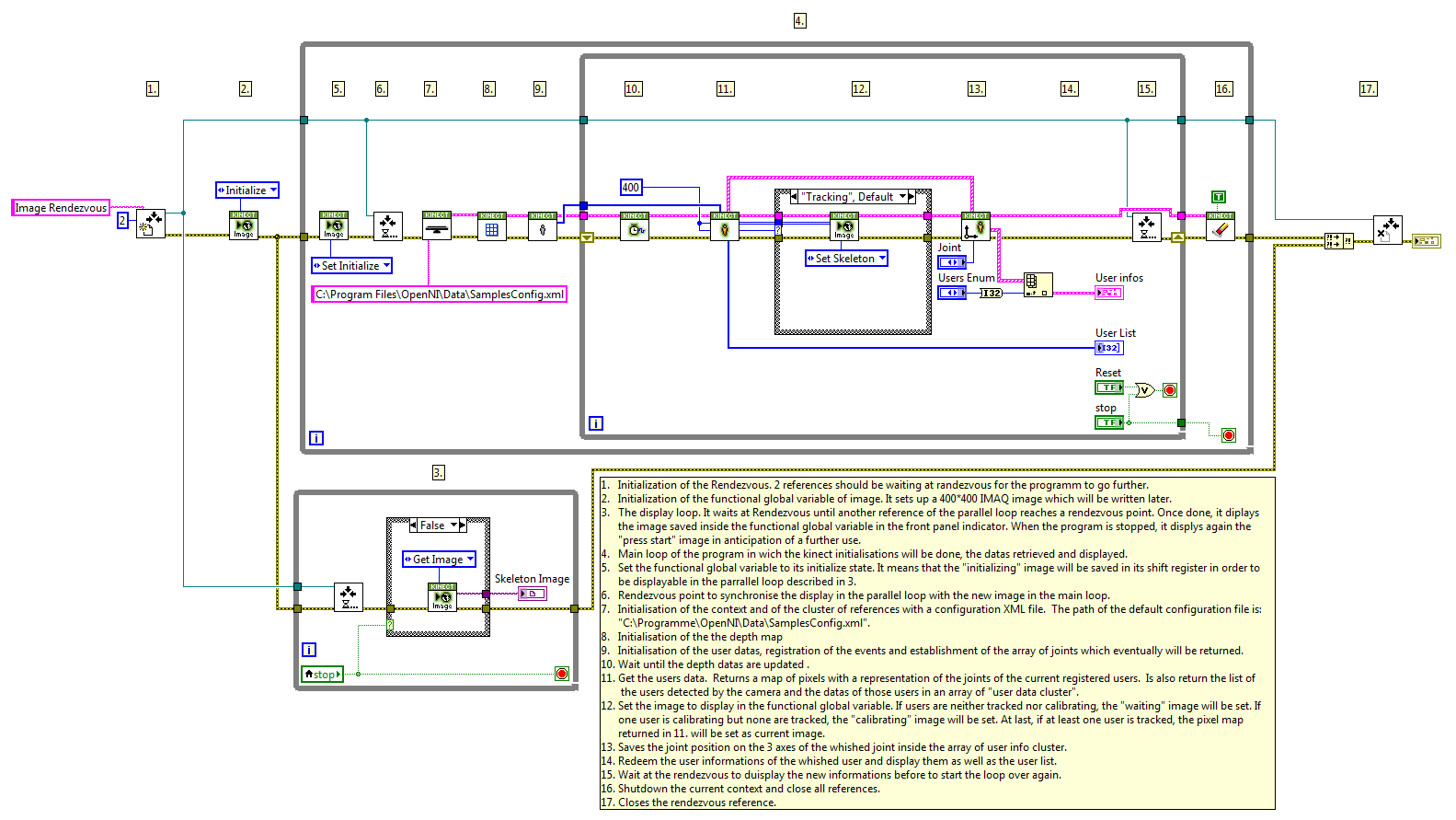
Overview of one of the VI (clic to enlarge):
Florian Abry
Inside Sales Engineer, NI Germany

Example code from the Example Code Exchange in the NI Community is licensed with the MIT license.


- Mark as Read
- Mark as New
- Bookmark
- Permalink
- Report to a Moderator
It seems to be a great acheivement! However i followed the steps and tried running it,but it shows some dll files missing,and locating these dll files doesn't help as it says files have been moved or deleted...
I exactly want to record the numerical data from the skeleton movement and these process seems like its a great help.

- Mark as Read
- Mark as New
- Bookmark
- Permalink
- Report to a Moderator
How to use this sample connect robuilder

- Mark as Read
- Mark as New
- Bookmark
- Permalink
- Report to a Moderator
sorry sir, i use openNI2 and NITE2. When try to run one example . The program asked me to open some file but i can't find it. Here's the captures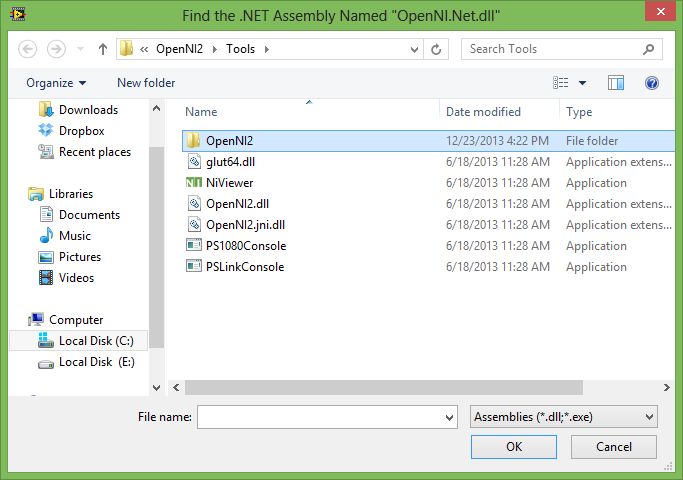
Could you help me ?
Thanks for your attention

- Mark as Read
- Mark as New
- Bookmark
- Permalink
- Report to a Moderator
Is openni.org not a working website anymore?

- Mark as Read
- Mark as New
- Bookmark
- Permalink
- Report to a Moderator
hi Naity, Thanks for the information i have learnt manything from ur blog, but i m having trouble to download them, the above download links are expired, can u recheck those links for me, or can u mail me plz to rihansrk@gmail.com.
Thank you
RIHAN

- Mark as Read
- Mark as New
- Bookmark
- Permalink
- Report to a Moderator
Hi, can anyone tell me how toset up the Kinect in Labview please? whatever I do, it's not working  I want to start a project but without this first step there will be no project 😕 BTW happy to see you advanced

- Mark as Read
- Mark as New
- Bookmark
- Permalink
- Report to a Moderator
Hi Wafazak,
this is quite outdated, it was from before the official API was released by Microsoft. There is a great API that work with the official drivers. I can only advise you to check it: http://sine.ni.com/nips/cds/view/p/lang/en/nid/210938
And it is free 
Florian Abry
Inside Sales Engineer, NI Germany
- Mark as Read
- Mark as New
- Bookmark
- Permalink
- Report to a Moderator
Hi there :)Thank you very much for replying!Actually, I did make it work and the Kinesthesia Toolkit for Microsoft Kinect was my first exemple to test, it's working well!
Than you again.
Wafa AYAD
Email : wafa.ayad@outlook.com
Tél : (+33)7 51 20 15 49
Date: Mon, 27 Jun 2016 04:12:40 -0500
From: web.community@ni.com
To: wafa.ayad@outlook.com
Subject: Re: - User Tracking with LabVIEW and Kinect based on the OpenNI Interface
NI Community
User Tracking with LabVIEW and Kinect based on the OpenNI Interface
new comment by Naity View all comments on this document
Hi Wafazak,
this is quite outdated, it was from before the official API was released by Microsoft. There is a great API that work with the official drivers. I can only advise you to check it: http://sine.ni.com/nips/cds/view/p/lang/en/nid/210938
And it is free
Reply to this email to respond to Naity's comment.
- « Previous
-
- 1
- 2
- Next »

