- Document History
- Subscribe to RSS Feed
- Mark as New
- Mark as Read
- Bookmark
- Subscribe
- Printer Friendly Page
- Report to a Moderator
- Subscribe to RSS Feed
- Mark as New
- Mark as Read
- Bookmark
- Subscribe
- Printer Friendly Page
- Report to a Moderator
LabVIEW Options Dialog Framework (ODF)


The Options Dialog Framework (ODF) is a reference design for adding an interface for managing options and settings within a LabVIEW-built application. It is based on the framework used by the options dialog in the LabVIEW development environment.
Please provide any comments, feedback, suggestions and questions in the comments below.
For the purpose of this discussion we differentiate between options/settings/preferences and (system) configuration.
Options/settings/preferences - parameters that configure the operation of an application such as where files are stored, how data is displayed, etc. The specific set of options is fixed by the application developer and you generally do not have a variable number of settings. The LabVIEW options dialog is a good example of this type of information.
System configuration - a description of the physical and logical setup and architecture of a system and the associated application. This typically includes information about HW targets, channels, modules, and configuration of these objects within the system. System configurations are often hierarchical in nature (tree object) and support adding many instances of different object types.
This document and the associated examples do not address system configuration. For a possible system configuration solution take a look at the xCE (Generic Configuration Editor Reference Example, https://forums.ni.com/t5/Reference-Design-Content/Generic-Configuration-Editor-xCE-Reference-Applica...). This reference design and framework uses LVOOP to define configuration objects and lets developers design their own configuration editor by inheriting from the provided bases classes.
Application Settings Architecture
Managing settings within an application typically consists of three components.
- Settings Storage - a method to store and persist application settings values between instances of running the application. This is typically implemented using a database or a file (INI, XML, etc.) on the local computer.
- Active Settings - a method to load and hold current settings values (current value table) in the application and access these values from the application logic. In LabVIEW this is typically implemented using one of a number of common methods (global, FGV, cluster in a shift register, shared variables, etc.)
- Settings Dialog - a user interface to directly view and update specific application settings. Some settings may be updated interactively while working with the application, while other settings are updated explicitly using the settings/options dialog. Not all application settings are necessarily exposed in the settings dialog.
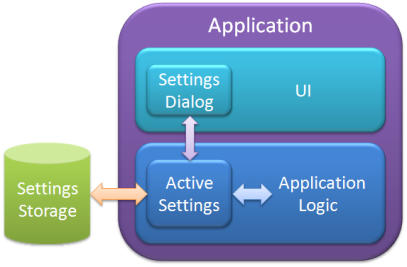
Operations dealing with Application Settings include the following:
- Start of Application - settings are loaded from storage (Settings Storage) into active memory (Active Settings)
- Application Logic - the application code reads and writes settings in active memory (Active Settings) as necessary
- Settings Dialog - when the settings dialog is opened, the dialog pulls settings values from active memory into the UI of the dialog. When the dialog is closed the new values in the dialog UI are written back to active memory (Active Settings).
- Close of Application - settings values from Active Settings are saved to Settings Storage when the application is closed. This Save routine may also be called at other times in the application such as when the setting dialog is closed.
To implement this architecture we need the three basic settings components with interfaces that provide the necessary control to the application and other components. The following sections will discuss each of these three components. It should be noted that each component can be implement using a number of different methods and LabVIEW features and these implementations can be mixed and matched depending on the needs and preferences of the application and developer.
Configuration of Settings
As part of developing an application the developer needs to decide and define the list of settings (name, data type, etc.) used by the application. To simplify the process of managing settings throughout an application the goal is to define the list of settings in one location and have all other components dealing with settings use this common list. The following discussion and examples will attempt to provide a solution that follows this high-priority design criteria.
Active Settings
The Active Settings component is the core piece of implementing settings management in an application as it interfaces to the other three related components of the application (settings storage, settings dialog, application logic). It also makes sense that this component would be used to define the list of settings in an application.
To simplify using settings the Active Settings should provide access to settings values in a number of different ways:
- Access by Name - read and write current values in Active Settings by name
- Access by Node - read and write settings using a static node (similar to a local variable node) - this feature allows for
- List of Settings - return a list of all available settings including name and data type
- Get All Settings - return the complete set of settings including values. This method is typically used to persist the settings value to Settings Storage.
Implementation
There are quite a few different implementations of an Active Settings component in use in the LabVIEW community today, each offering different advantages and drawbacks, partially based on the personal preference of individual developers. These implementations include:
- Global variable
- Individual settings
- All settings in a cluster
- Functional Global Variable (FGV)
- LVOOP Class
- Shift Register
- Settings cluster
- Shared Variables
For the time being we will not make a specific recommendation or example to implement Active Settings.
Settings Storage
Storing settings values between instances of running an application is the other key component of managing settings in your application. Like for the Active Settings, there are a number of common LabVIEW implementations for settings storage. These include:
- Configuration file (INI)
- XML File
- Binary file
- Database
The config or INI file is a common solution as LabVIEW includes a good native solution for accessing these files.
XML files are popular for implementations that store active settings in a cluster, because it allows you to store the cluster as a whole in XML. Several Cluster to XML solutions exist in LabVIEW and the community.
Binary files can be used to quickly store any LabVIEW data structure to file, but are not suitable if you need to access the settings file outside of the application (non human readable) and does not handle additions and changes to settings well.
An ideal solution for Active Settings and Settings Storage will allow you to quickly and easily save all settings values to storage and retrieve them in a single operation without needing to customize this routine for you specific list of settings.
For the time being we will not make a specific recommendation or example to implement Settings Storage but will use INI files in our examples.
Settings Dialog
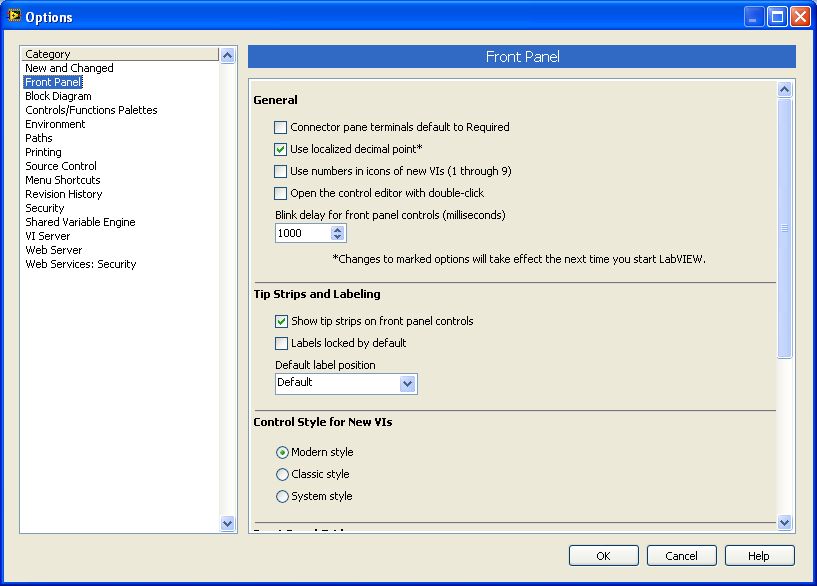
A settings or options dialog allows the user of the application to interactively modify specific settings exposed by the developers. As an example the LabVIEW options dialog provides access to a wide range of settings that affect the looks and behavior of the LabVIEW development environment.
Reference Example
To develop an options dialog for your own application can develop the dialog from scratch or you can use the same dialog framework used by the LabVIEW options dialog. The example included with this document provides an interface to use the same code as the LabVIEW options dialog.
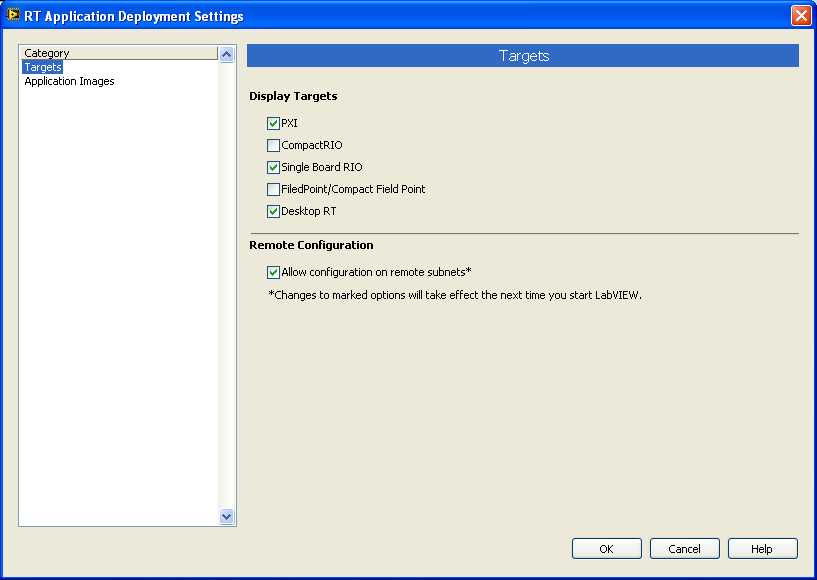
The options dialog is customized by building a number of individual options pages. When the options dialog is opened you provide a list of options pages VI paths to the dialog VI which will load and display the pages dynamically.
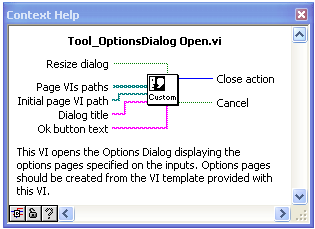
Each options page is implemented in one VI and should be created from the VI template provided with the example. Each options page contains front panel controls to allow the user to set values for a list of related settings in your application. Customizing the options page template is documented in the diagram of the template VI. The options page VI integrates with the options dialog using a number of events and is displayed in a subpanel of the main dialog VI.
One of the important aspects of building and customizing your options pages is the load and save process of the settings values. In the template and example provide the settings values are loaded from and save to a config INI file directly, rather than loading them from active memory in a running application. This is different than the discussion and diagram above. You can adjust this code to load and save settings values from file or active memory.
The options page VIs are loaded and run the first time the particular page is shown in the options dialog. This means that VIs are loaded sequentially based on user interaction. When the dialog is closed, however, all of the running options page VIs are stopped at the same time based on a user event from the options dialog. This means that their respective Save routines are likely running simultaneously. This is important to remember so that you don't try to access a shared resources such as a file with multiple File Open calls, generating access errors. The example solves this conflict by using one File Save Load VI that reads and writes the config file for all options pages. This non-reentrant VI can only be called by one page at a time and the LabVIEW scheduler thus automatically manages sequential accesses to the file.
Note: Currently the options dialog framework VI is password protected while we refactor the code to make it user accessible. Stay tuned for an update of this reference example that includes the open source options dialog. In addition we are planning on adding tighter integration between the Settings Dialog, Active Settings, and Settings storage components, to have one fully integrated application settings management solution.
Building an EXE
When build an EXE using the ODF VIs, there are a couple of considerations you need to make.
- Since the option pages are called dynamically by ODF, you need to include these VIs in your built EXE (Always Include) or, if you prefer to keep the option pages outside of the EXE, you need to add them to the distribution of the EXE and associated files.
- Based on the location of the option page VIs in or with your EXE, the VI calling the ODF dialog needs to determine the proper path for the option page VIs. In some cases the path will be different whether you run in the development environment or as an EXE and your code needs to handle this difference. The same is true for the path of the configuration INI file which is determined and used in each of the option page VIs. Most likely this needs to be handled differently in the development environment versus a built application. The attached example (ODF EXE Example.zip) shows how to hande this difference.
- For any of your option page VIs, you need to include the front panel in the build options for the EXE.
See ODF EXE Example.zip for an example of a project using ODF and building an EXE. The top level VI and option page VIs contain the code that determines the dynamic paths of the option page VIs and configuration file.
Note: This example is using the options page VI template from ODF version 0.5 and will not work with earlier versions of ODF.
Please provide any comments, feedback, suggestions and questions in the comments below.
References
A different Options Dialog reference design based on the Actor Framework - https://decibel.ni.com/content/docs/DOC-32723
Version History
| Version | Date | Notes |
|---|---|---|
| v 1.0.0.0 | August 25, 2010 | Original release as ZIP file only |
| v 0.2.0.2 | August 27, 2010 |
Reverted version number from 1.0 to 0.2
|
| v 0.5.0.1 | January 7, 2015 |
Added new ZIP file saved in LabVIEW 2009
|
| ODF EXE Example.zip | April 7, 2015 | Example project including a Build Spec to create an application executable using ODF. This example requires ODF version 0.5.0.1 or later. |
Christian L, CLA
Systems Engineering Manager - Automotive and Transportation
NI - Austin, TX


- Mark as Read
- Mark as New
- Bookmark
- Permalink
- Report to a Moderator
Great work guys - thanks for making this accessible. It replaces an internal reuse package we have, which is a good thing! 
Speaking of which, can I encourage you to release it as a VIPM package?
Copyright © 2004-2026 Christopher G. Relf. Some Rights Reserved. This posting is licensed under a Creative Commons Attribution 4.0 License.


- Mark as Read
- Mark as New
- Bookmark
- Permalink
- Report to a Moderator
Having previously been inspired by the LV options framework but frustrated that I couldn't use it, one of my side projects had been putting together something simliar using classes (each preference pane has it's own class defining it's data and editing view). It's a very rough work in progress, and if I could work out how to attach it to this message I would...
Shaun


- Mark as Read
- Mark as New
- Bookmark
- Permalink
- Report to a Moderator
great! Like Shaun I had started to do my own (but not gotten very far due to lack of time)....

- Mark as Read
- Mark as New
- Bookmark
- Permalink
- Report to a Moderator
Shaun,
If you want to share your code, I would create a new document in NI Talk (in this group or the general NI Developer Community space) and then add a link here.
Christian L, CLA
Systems Engineering Manager - Automotive and Transportation
NI - Austin, TX
- Mark as Read
- Mark as New
- Bookmark
- Permalink
- Report to a Moderator
crelf,
I'm definitely planning on creating a VI package, but was thinking more about where to put the files in the LV folder structure. For the VI templates it makes sense to put them alongside the existing templates, but I have not tried putting custom templates into that structure so far .
If you have some suggestions where to install the different parts of the code (framework VIs, examples, templates) I would love to hear them.
Christian
Christian L, CLA
Systems Engineering Manager - Automotive and Transportation
NI - Austin, TX
- Mark as Read
- Mark as New
- Bookmark
- Permalink
- Report to a Moderator
Here's an easier way: http://dl.dropbox.com/u/1934592/Preference%20Pane.zip

- Mark as Read
- Mark as New
- Bookmark
- Permalink
- Report to a Moderator
IMO: I would suggest storing them all relative, then placing it under user.lib/vi.lib (with a new namespace as per LAVA thread) with access via palettes for the API and Tools menu (or a wizard) to create templates.
The only reason I suggest storing stuff relative is that I have found it to be easier when creating a distribution.
Sometimes you can get around it easy, but if I have to worry about linking after I create the source dist because I am installing things in different locations it can become a pain as things may need to relink after install.
VIPM 2010 can now mass compile the package on install, this may make it less of an issue?
- Mark as Read
- Mark as New
- Bookmark
- Permalink
- Report to a Moderator
When my packages include templates, I tend to have them with all the other package VIs, include them in the palette – but I make them merge VIs. This is much easier and more intuitive (IMHO) than putting them in the templates folder (which, again IMHO, no one uses anyway). Either that or go with jgcode’s idea of having them accessible through a wizard in the tools menu, but I’d start with the merge VIs in the palette (I put mine under a “Preference Page Templates” sub-palette).
Copyright © 2004-2026 Christopher G. Relf. Some Rights Reserved. This posting is licensed under a Creative Commons Attribution 4.0 License.

- Mark as Read
- Mark as New
- Bookmark
- Permalink
- Report to a Moderator
I agree with Chris's humble opinions. I've created a few templates and put them in the "New..." dialog before, but that dialog is so clunky I usually just go find them on disk instead, anyway. Turning them into merge VIs makes them easier to access, and then you can put them either (1) all on a single "templates" palette or (2) each on a topically appropriate palette with other VIs.
Creating a new wizard tool to get to them seems like just rehashing the existing "New..." tool. I can see the value of using a tool for template projects, though...I had to do that with the to preserve lvclass linkages.
Staff Systems Engineer
National Instruments
- Mark as Read
- Mark as New
- Bookmark
- Permalink
- Report to a Moderator
Chris, David,
The challenge in this case is that the VI temrplate is not just code, but also UI components/colors and VI properties. Using the Merge VI option does not include these features when placing the code on a blank VI. Given the nature of this reference design I think this is too much of a limitation. I do like the idea of an utility in the Tools menu to manage/create options pages.
Christian L, CLA
Systems Engineering Manager - Automotive and Transportation
NI - Austin, TX
- Mark as Read
- Mark as New
- Bookmark
- Permalink
- Report to a Moderator
True – actually, merge VIs and front panel stuff don’t work well – I’m sure there’s a bug there (eg: make a VI with a few controls and decorations, then merge it = the controls vs decorations are offset). I’m sure I’ve reported it before, but I can’t find the CAR right now…
Copyright © 2004-2026 Christopher G. Relf. Some Rights Reserved. This posting is licensed under a Creative Commons Attribution 4.0 License.
- Mark as Read
- Mark as New
- Bookmark
- Permalink
- Report to a Moderator
crelf wrote:
I’m sure I’ve reported it before, but I can’t find the CAR right now…
One CAR is #39212 (but it's Jim's not yours) as per this thread on ni.com - for when objects dropped are repositioned.
As ChristianL mentioned - Merge VIs do not include VI Props etc...
The other show stopper is the fact that the Template in this case contains other Templates (as subVIs etc...).
Using Merge VIs will drop a copy of the called Template on the BD e.g. it will not instantiate a new e.g. subVI.
This is one of the issues I have transitioning Templates to the palettes - I don't know if it is possible to change this behaviour?
It is one of the Ideas I have, that would be cool for NI to implement, and probably worth I add to the Idea Exchange to get others feedback.
Anyways the "New..." Dialog is not that bad 
It is pretty slow, but I thats the most logic spot for all my Templates that fall into the above category - and I use it all the time.
If the dialog was cache'd between calls (with a Refresh Button and an IN for programmatic access) that would be better IMHO (another Idea).
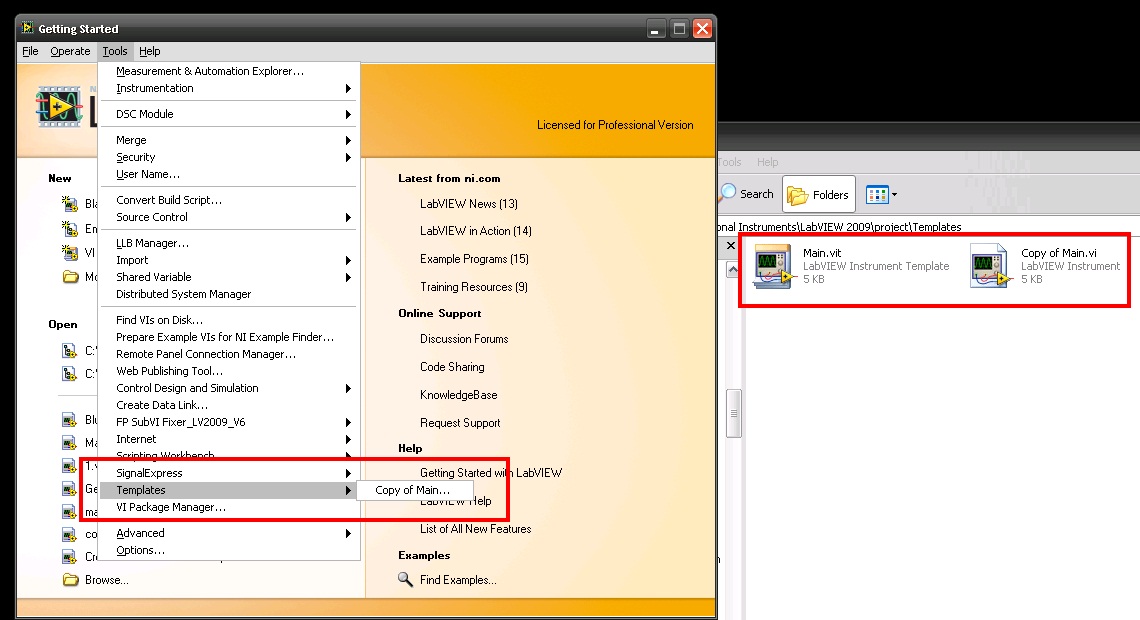
Additionally another Idea is to allow Templates in the Tools Menu
At the moment Templates are ignored.
A fast way to access Templates would be just to select them from the Tools menu and a new instance would be created?
Thoughts?
- Mark as Read
- Mark as New
- Bookmark
- Permalink
- Report to a Moderator
Jonathon Green wrote:
crelf wrote:
I’m sure I’ve reported it before, but I can’t find the CAR right now…
One CAR is #39212 (but it's Jim's not yours) as per this thread on ni.com - for when objects dropped are repositioned.
As ChristianL mentioned - Merge VIs do not include VI Props etc...
Ah - that's why I couldn't find it. Actually, it is mine (I discovered the issue (see http://forums.jkisoft.com/index.php?showtopic=950) and taked to Jim about it as it was screwing up VIs I had in a package I was building.
Copyright © 2004-2026 Christopher G. Relf. Some Rights Reserved. This posting is licensed under a Creative Commons Attribution 4.0 License.
- Mark as Read
- Mark as New
- Bookmark
- Permalink
- Report to a Moderator
Jonathon Green wrote:
Anyways the "New..." Dialog is not that bad
Sure, but you're missing my point - if all the interfaces to a reuse package are in the pallete, then that's where I'm going to look for them. Having one component in the "New..." dialog and everything else in the palette isn't intuative IMO. If I was going to do it that way, I'd need to put a dummy VI in the palette with text on it's icon that says something like "The template you're looking for is in the New dialog you idiot" and I'd prefer my software not to call me an idiot explicitly (it does it implicitly enough thank you very much).
Copyright © 2004-2026 Christopher G. Relf. Some Rights Reserved. This posting is licensed under a Creative Commons Attribution 4.0 License.
- Mark as Read
- Mark as New
- Bookmark
- Permalink
- Report to a Moderator
I wasn't suggesting we use "New.." Dialog, more just a comment on that I use it and the reasons why.
Anyways, I definitely see your point as I too would prefer it all localised (API + templates) but in the case of using the original templates (as they are now) as Merge VI's: you are going to be dropping subVIs/controls as .vit's/.ctt's on you BD which is going to cause problems.
- Mark as Read
- Mark as New
- Bookmark
- Permalink
- Report to a Moderator
Yeah, totally. I’m not sure there’s a clear solution here.
Copyright © 2004-2026 Christopher G. Relf. Some Rights Reserved. This posting is licensed under a Creative Commons Attribution 4.0 License.
- Mark as Read
- Mark as New
- Bookmark
- Permalink
- Report to a Moderator
crelf wrote:
Yeah, totally. I’m not sure there’s a clear solution here.
What is your current workflow for templates at the moment?
(As mentioned above I currently install into the <LabVIEW>\Templates folder)
What do others do?
- Mark as Read
- Mark as New
- Bookmark
- Permalink
- Report to a Moderator
Am I missing something obvious here, how is the page specific association with the help button done?
- Mark as Read
- Mark as New
- Bookmark
- Permalink
- Report to a Moderator
re Creating VI from Templates in the Tools menu
I like that idea and I think we can create something pretty quick there. At least a simple VI that provides a small dialog with a list of templates available in the Tools menu/Project folder. You can then create a VI from template with two clicks instead of going through the New ... dialog.
re nrp's question on the Help button
That was a plain oversight on my part. I guess my brain filters out the word Help on UIs. The current design calls the main LV help (*.chm file) if no options pages are open. This should only happen if there is an error loading a page or the help info on the individual option page is missing (see next sentences). I'm planning on adding an input to the calling VI that allows you to specify what help you want in that case. Individual options pages specify their help file using the Help Tag and Help Path properties in the VI Properties>>Documentation for each individual VI. Again these are links to help files. You can edit these right now to link to your own help file. I will add this in the documentation of the template.
What other options would you like to see for linking to Help. i.e. is a help file (*.chm) a good option or would you also like to be able to open other types of documentation (HTML in a browser, text file, ???). Please provide feedback and suggestions.
Christian L, CLA
Systems Engineering Manager - Automotive and Transportation
NI - Austin, TX
- Mark as Read
- Mark as New
- Bookmark
- Permalink
- Report to a Moderator
re Template distribution: Before we hijack this thread much more, I've created a thread over here to discuss: http://lavag.org/topic/12982-where-do-you-put-the-templates-in-your-distributions
Copyright © 2004-2026 Christopher G. Relf. Some Rights Reserved. This posting is licensed under a Creative Commons Attribution 4.0 License.
- Mark as Read
- Mark as New
- Bookmark
- Permalink
- Report to a Moderator
Here are some Idea relating to this topic:
Allow VITs and CTTs to Behave Correctly As Merge VIs
Allow Templates to be Selected Directly from the Tools Menu

- Mark as Read
- Mark as New
- Bookmark
- Permalink
- Report to a Moderator
Be aware that this code calls VIs in the ...\LabVIEW 2009\resource directory. Therefore if you want to use this code in LV 2010, you will need to create a separate version of the code that links into the correct LabVIEW directory. Performing a Mass Compile may cause problems.
- Mark as Read
- Mark as New
- Bookmark
- Permalink
- Report to a Moderator
Jeff, Thanks for the catch. I update and posted the code to take care of this.
Christian L, CLA
Systems Engineering Manager - Automotive and Transportation
NI - Austin, TX

- Mark as Read
- Mark as New
- Bookmark
- Permalink
- Report to a Moderator
It can be converted to 8.6 format???
- Mark as Read
- Mark as New
- Bookmark
- Permalink
- Report to a Moderator
Unfortunately there are functions used in the published Options Dialog Framework which do not exist in LV 8.6 or earlier, so it will not properly save back to that version.
Christian L, CLA
Systems Engineering Manager - Automotive and Transportation
NI - Austin, TX
- Mark as Read
- Mark as New
- Bookmark
- Permalink
- Report to a Moderator
“Unfortunately there are functions used in the published Options Dialog Framework which do not exist in LV 8.6 or earlier,”
LabVIEW is 8.6.1:National Instruments\LabVIEW 8.6\resource\dialog\PreferencesDialog ,Have the same file,I do not know why?

- Mark as Read
- Mark as New
- Bookmark
- Permalink
- Report to a Moderator
Any news on the release of an open source version of the dialog framework?
"Note: Currently the options dialog framework VI is password protected while we refactor the code to make it user accessible. Stay tuned for an update of this reference example that includes the open source options dialog. In addition we are planning on adding tighter integration between the Settings Dialog, Active Settings, and Settings storage components, to have one fully integrated application settings management solution."
- Mark as Read
- Mark as New
- Bookmark
- Permalink
- Report to a Moderator
Hi Christian
I think this question will benefit everyone as it is general in nature however, I am interested in this package specifically so I will post here.
Can i redistribute 'NI code'? Can I rename it, edit it an etc...? And if I can, how do I license it correctly? It will be as a package so there are copyright fields and I can create a license file etc...
Thank you for your time.

- Mark as Read
- Mark as New
- Bookmark
- Permalink
- Report to a Moderator
IANAL, but the T&C on the website make it look like we can't. It also seems they can do whatever they want with things we post here. Here's a snippet of the legalese, with my emphases added at various points:
Use of Site. National Instruments ("NI") authorizes you to view and download the materials at this Web site ("Site") only for your personal, non-commercial use in accordance with the terms and conditions set forth herein, including without limitation the following restrictions: (a) you must retain all copyright and other proprietary notices contained in the original materials on any copies of the materials; (b) you may not modify the materials at this Site in any way or reproduce or publicly display, perform, or distribute or otherwise use them for any public or commercial purpose; and (c) you may not use any of these materials on any other Web site or networked computer environment for any purpose. Unauthorized use of any materials at this Site may violate copyright, trademark, and other laws. If you breach any of these Terms, your authorization to use this Site automatically terminates and you must immediately destroy any downloaded or printed materials. Any rights not expressly granted herein are reserved to NI.
Use of Software. Use of all software that you download from this Site ("Software") is subject to the license terms of the applicable software license agreement for such Software. The applicable software license agreement will typically accompany or be provided at the time you download or otherwise access the Software. If not, then contact NI for the applicable Software License Agreement. You may not use the Software until you have read and accepted the terms of the applicable software license agreement.
User Contributions. Any information or material ("Communications") that you transmit to this Site is considered non-confidential. NI has no obligations with respect to the Communications, and NI is free and you authorize NI to copy, disclose, distribute, incorporate, translate and otherwise use the Communications and all related data, images, sound, and text for any and all purposes. NI reserves the right, in its sole discretion on a case by case basis, to remove, reject, or otherwise modify any such Communications or any portion(s) thereof. NI may, but is not obligated to, monitor or review any areas on the Site where users transmit or post Communications, including but not limited to discussion groups, bulletin boards or other user forums, and the content of any such Communications. NI, however, has no liability related to the content of any such Communications, whether or not arising under the laws of copyright, libel, privacy, obscenity, or otherwise. NI DISCLAIMS ANY AND ALL LIABILITIES FOR AND MAKES NO WARRANTIES, EITHER EXPRESS OR IMPLIED, WITH RESPECT TO ANY SUCH COMMUNICATIONS, INCLUDING, WITHOUT LIMITATION, THE IMPLIED WARRANTIES OF MERCHANTABILITY, FITNESS FOR A PARTICULAR PURPOSE, OR NON-INFRINGEMENT OF INTELLECTUAL PROPERTY.
- Mark as Read
- Mark as New
- Bookmark
- Permalink
- Report to a Moderator
Jonathon,
David is correct that NI's General Purpose Software License Agreement (as well as a new set of Sample Code License Terms which will be puslished soon and will govern this type of content) do not permit for you to republish/redistribute source code content. I will contact you directly to discuss your project and figure out how we can let you use and publish the necessary code sections.
In general if anyone is interested in modifying and republishing source code from examples, reference designs, etc. that is available on ni.com, they should contact their NI representative to discuss their project and receive the necessary permission. Of course you can always use the code NI publishes as a guide for your own development and publish your own creations under the license terms of your own choosing.
Christian L
Systems Engineering Manager
National Instruments
Christian L, CLA
Systems Engineering Manager - Automotive and Transportation
NI - Austin, TX
- Mark as Read
- Mark as New
- Bookmark
- Permalink
- Report to a Moderator
Thanks for the info guys.
Just to clarify a question that came up from the above, in plain English can I use code on NI websites including packages published for free on the LabVIEW Tools Network (assuming they under this license - on mob can't check right now) in commercial builds (.exe's)?
I will follow up offline with Christian regarding my original query.
Cheers
-Jonathon
- Mark as Read
- Mark as New
- Bookmark
- Permalink
- Report to a Moderator
Jonathon Green wrote:
Just to clarify a question that came up from the above, in plain English can I use code on NI websites including packages published for free on the LabVIEW Tools Network (assuming they under this license - on mob can't check right now) in commercial builds (.exe's)?
Yes, using this code in compiled EXEs or other object files (e.g. DLLs) and distributing those files is covered and permitted by the license terms.
Christian L, CLA
Systems Engineering Manager - Automotive and Transportation
NI - Austin, TX
- Mark as Read
- Mark as New
- Bookmark
- Permalink
- Report to a Moderator
Just to be clear, for the LabVIEW Tools Network each free or paid tool should have it's own license agreement that deals with reusing code. If it does not, then you should contact the specific developer of that product for permission to use it.
David_L
LabVIEW Partner Program
- Mark as Read
- Mark as New
- Bookmark
- Permalink
- Report to a Moderator
Christian,
Did you ever got around to creating a VIPM package for this?
Thanks,
Fab
Check out DSH Pragmatic Software Development Workshop!
DQMH Lead Architect * DQMH Trusted Advisor * Certified LabVIEW Architect * Certified LabVIEW Embedded Developer * Certified Professional Instructor * LabVIEW Champion * Code Janitor
Have you been nice to future you?
- Mark as Read
- Mark as New
- Bookmark
- Permalink
- Report to a Moderator
Hi Fab, there is a package attached to this document.
- Mark as Read
- Mark as New
- Bookmark
- Permalink
- Report to a Moderator
Thanks Jon, for some reason I read .zip for both files. I guess I should go check if it is time for new glasses.
Thanks!
Fab
Check out DSH Pragmatic Software Development Workshop!
DQMH Lead Architect * DQMH Trusted Advisor * Certified LabVIEW Architect * Certified LabVIEW Embedded Developer * Certified Professional Instructor * LabVIEW Champion * Code Janitor
Have you been nice to future you?


- Mark as Read
- Mark as New
- Bookmark
- Permalink
- Report to a Moderator
Excellent Work! But I can't replace some text prompt or labels on the dialog for localization. At present, we can only custom the "OK" button label.
Here it is:
Below lies the NI option dialog in Chinese.

- Mark as Read
- Mark as New
- Bookmark
- Permalink
- Report to a Moderator
While it looks very nice, how good is the code? Who know, everything is locked. Let's be honest. For production work, this is useless. Like the previous poster, who wants to do something very simple - sorry. Your hope is that someday that the keeper of the keys might fix it -- and the other bugs too...
If you want this to be your corporate "IP" fine do so, but don't dangle it out there as something we can reuse when we really can't.
Mike...
Certified Professional Instructor
Certified LabVIEW Architect
LabVIEW Champion
"... after all, He's not a tame lion..."
For help with grief and grieving.


- Mark as Read
- Mark as New
- Bookmark
- Permalink
- Report to a Moderator
I have put this into a small application, however it does not seem to want to load the options dialogs correctly in a .exe. In the development environment, it works just fine.
I made sure that the paths are correct, and all the vi's are listed under the Category section and the blue bar updates with the proper text. But where the options are supposed to be listed, it just says "Cannot display selected Category page"
No errors pop-up, so I am not sure what the issue is.

- Mark as Read
- Mark as New
- Bookmark
- Permalink
- Report to a Moderator
Check that the VI that defines the page is actually being included in your EXE. Do a preview of the appbuilder build and make sure the file is included -- dynamically loaded VIs may get stripped out if you have "remove unused VIs" turned on, so you'll need to put it in the "always include" list.
- Mark as Read
- Mark as New
- Bookmark
- Permalink
- Report to a Moderator
I modified the build to include the vis in my build, but still the same results. I am listing all the files in the folder and loading those that match a certain pattern (see pic). All the pages are the same, just the vi title is different. My intent is to be able to add option pages for future test fixtures without having to re-build the application (just create a new VI, and change the filename and title).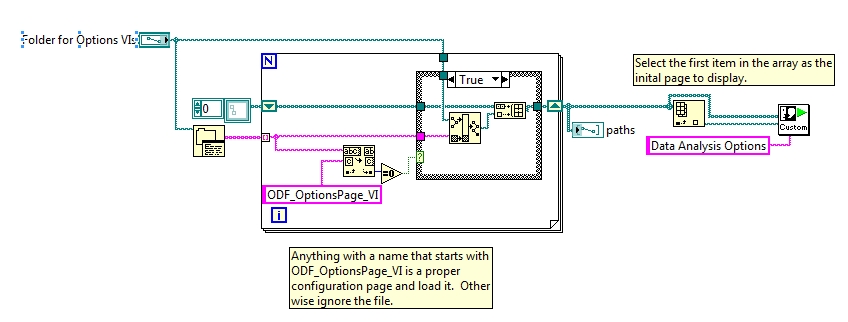
- Mark as Read
- Mark as New
- Bookmark
- Permalink
- Report to a Moderator
> without having to re-build the application
OH. In that case, adding the VIs to App Builder won't help you at all... in fact, that's the exact opposite of what you're trying to do.
Before anything else, I feel obliged to say that loading loose VIs into an EXE is something I try to discourage people from doing because it leads to all sorts of nasty practices -- it isn't bad on its face, but it causes longer term bad habits. It's a feature we'd love to eliminate from LabVIEW and encourage people to use packed project libraries instead for their dynamic content.
BUT that's not your problem today, so with the warning out of the way... my next guess would be that your VIs are saved as "source only". Most users have gotten into the VERY GOOD habit of using the option in LabVIEW to "Separate compiled code from source file" -- the option found on the first page of the VI Properties dialog. But if you have that option enabled on a VI, it CANNOT be loaded into a built EXE because it does not have its compiled code. Any VI (and subVIs) that you intend to load into the EXE you will need to turn that option off.
Here's where things get interesting: You'll need to turn it off on all the subVIs INCLUDING those in vi.lib. But you shouldn't modify vi.lib. What that means is that any VI that you intend to use for dynamic loading you need to create a source distribution (using app builder) and have it generate all the source files (including those in vi.lib) as a separate directory and, during that process, have it turn off the "source only" option.
This painful process is avoided if you build a packed project libraries for your dynamically loaded content.
- Mark as Read
- Mark as New
- Bookmark
- Permalink
- Report to a Moderator
I just posted an updated version of the VIs in a ZIP file (v 0.5.0.1). After some testing and feedback from the community I will also build and post a VIP file.
Christian L, CLA
Systems Engineering Manager - Automotive and Transportation
NI - Austin, TX

- Mark as Read
- Mark as New
- Bookmark
- Permalink
- Report to a Moderator
I am having the same trouble that Kenny has getting this to run as a compiled EXE. I don’t want the ability to modify the pages “without having to re-build the application”. I would prefer that all of the page Vis are internal to the EXE but I am not sure if this is possible. I have tried multiple methods for accomplishing this. I have created static references to the page Vis for acquiring the paths, I have “Always Included” them in my build. I have even tried to do this as “loose Vis” outside of the EXE with no success. This method got me the furthest but I am only able to see the page title in the tree control and the title in the blue bar at the top of the options dialog. The actual page fails to load however. Everything works beautifully in the dev environment, with any method I try.

- Mark as Read
- Mark as New
- Bookmark
- Permalink
- Report to a Moderator
When creating your application do you set the VI Properties to not remove the front panel?
You can set this in 'Source File Settings' tab for every single VI.
- Mark as Read
- Mark as New
- Bookmark
- Permalink
- Report to a Moderator
For these page VIs, I have the default setting, which is "Do not remove front panel" and "remove block diagram". Is it possible to embed the page VIs within the EXE? If so, why can I not use a static reference to get the internal path of the VIs to pass into ODF?
- Mark as Read
- Mark as New
- Bookmark
- Permalink
- Report to a Moderator
I added an example using ODF and building an EXE that shows how to use the Always Include build option to embed the option page VIs in the EXE. The top level VI dynamically determines the paths of the options dialog VIs (inside the EXE) and passes them to the ODF dialog.
Christian L, CLA
Systems Engineering Manager - Automotive and Transportation
NI - Austin, TX
- Mark as Read
- Mark as New
- Bookmark
- Permalink
- Report to a Moderator
Thanks for the sample. I wasn't able to open it completely until I installed the latest version of ODF. After that, it opened, compiled and ran successfully. In my application, I replace the old version with the new version and was able to get it to compile and run successfully as well. I'm not exactly sure if something else I did made any difference but who cares, it's working now. Thanks a million.


